Send the show video to an LED wall over NDI
since v0.7.28An LED rig rarely looks like the video file. The main screen, the wings and the floor are separate surfaces, and the processor or media server wants them packed onto one canvas. NDI® video output (Pro) does that inside LTCast: it cuts the song’s video into slices, places and rotates them on an output canvas, and sends the result over the network, in step with the timecode. It has been tested with Depence R4 as the receiver.
- 1
There is nothing to install: LTCast includes the NDI library on both Windows and Mac. The receiving computer must be on the same network.
- 2
Load the song and its video (File → Import Video). NDI sends the video of the song that is playing; a song without video sends black.
- 3
Open View → NDI output. Add an output and give it a name — receivers list it as “COMPUTER (name)”. Set Canvas to the size and frame rate the receiver expects.
- 4
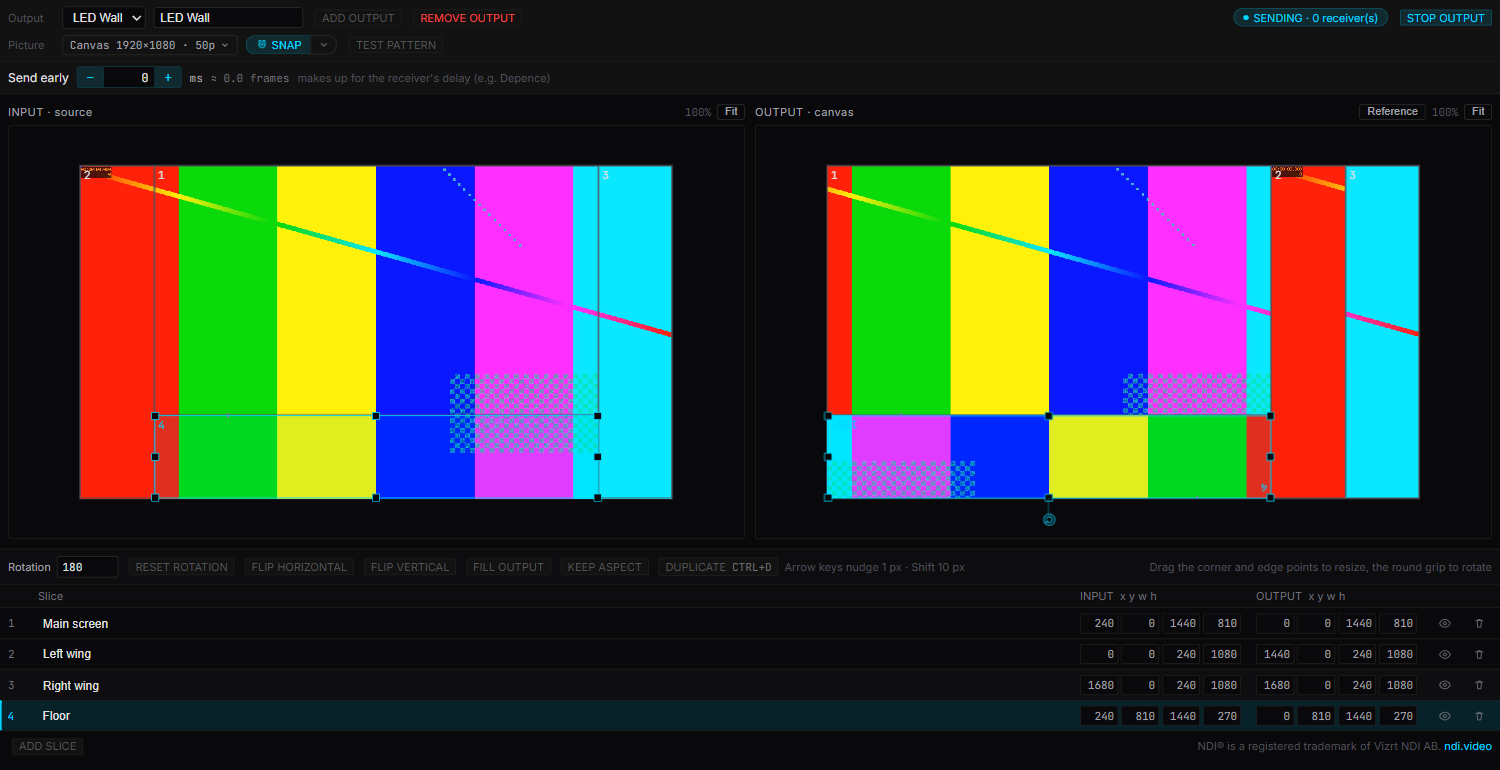
Add slices. In INPUT, drag a slice over the part of the video it should take; in OUTPUT, drag it to where it lands on the canvas. The round grip rotates it, Duplicate (Ctrl+D) copies it, and the arrow keys nudge it by a pixel (Shift: ten). Reference lays your LED pixel map under the output preview to line things up against.
- 5
Press Start output, then pick the LTCast source on the receiver.
- 6
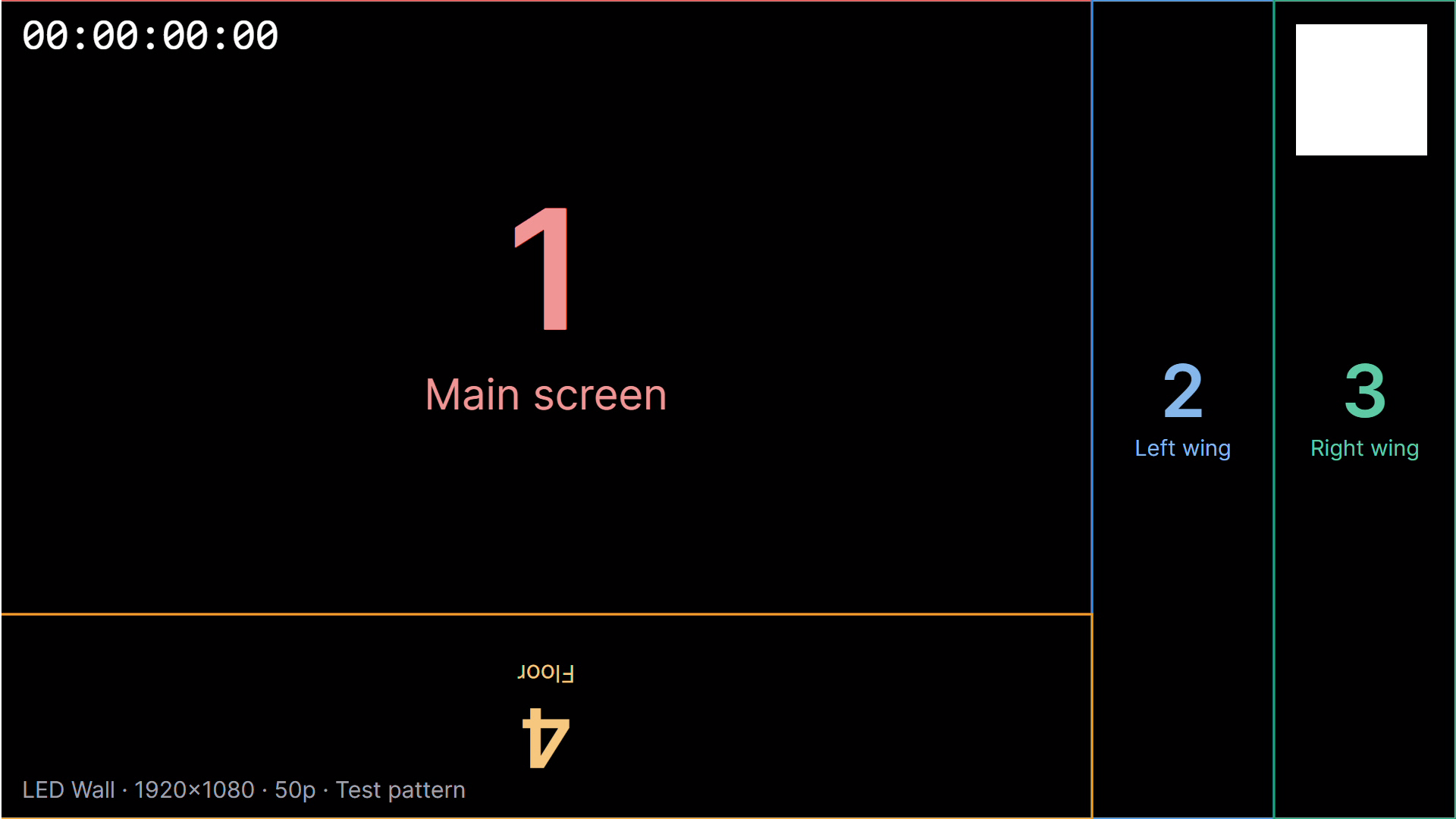
Turn on Test pattern to check the mapping. Every slice is outlined, numbered and named, and a square flashes white on each whole second of timecode. The same square flashes in the editor: if the receiver’s square flashes later, raise Send early until the two flash together.
- 7
Turn the test pattern off before the show. The NDI pill in the status bar shows what is being sent and how many receivers are connected; click it to stop or start sending, or its pencil to open the editor again.
Worth knowing
- Slices are locked while the show runs, so nothing gets nudged by accident. Send early can still be changed mid-show.
- Changing songs does not drop the NDI source — the receiver keeps the same source for the whole show.
- The layout is saved in the show file.
- On a Mac, the first time you start sending, macOS asks whether LTCast may use the local network. Click Allow, or no other computer can receive it. System Settings lists it as “LTCast Helper”.
- Tested with Depence R4 as the receiver.
Still stuck? Email [email protected] — happy to help you get a show locked.