Linked songs: fix a cue once, in every setlist
since v0.7.28The matinee, the evening show and the festival cut are often built from the same songs. Copy a song into each list and you have several copies to keep in step: change a cue in one and you have to remember to change it in the others. Linked songs are copies that stay in step. They share their cues, lyrics, offset and start timecode, so you fix a cue once and every list has it. What each list decides for itself — skip, what happens after a song finishes, transitions, pre-roll and fades — stays per list.
- 1
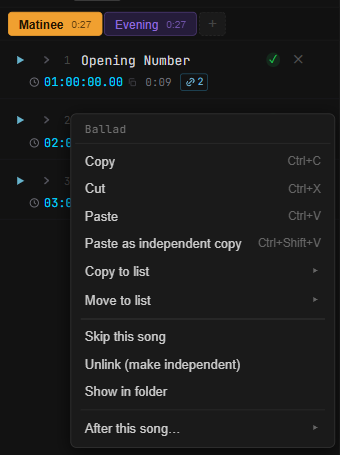
Copy the songs into the other list. Select them (click, Shift+click or Ctrl+click), press Ctrl+C, click the other list’s tab and press Ctrl+V. The right-click menu in the picture does it without switching tabs: Copy to list ▸ puts a copy at the end of the list you pick (Move to list ▸ moves the song instead). Dragging a song by its ⋮⋮ handle onto another list’s tab copies it too. To build a whole second show from the first, right-click its tab, choose Duplicate and name the new list. Every copy made this way is linked.
- 2
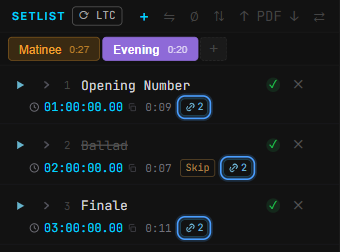
Spot the link. A linked song has a small chain badge on its second line, next to its length. The number is how many places the song appears in, and hovering over it names the lists. Change a cue, the lyrics or the offset in one copy and every other copy changes with it. Each tab shows the list’s colour (right-click a tab to pick one) and its running time — Evening is shorter than Matinee here because its ballad is skipped (step 6).
- 3
Want a copy that goes its own way? Paste it with Ctrl+Shift+V, or right-click and choose Paste as independent copy: it starts as an ordinary song with its own cues. A song that is already linked can be cut loose with Unlink (make independent) — it keeps everything it has, and from then on its edits stay its own.
- 4
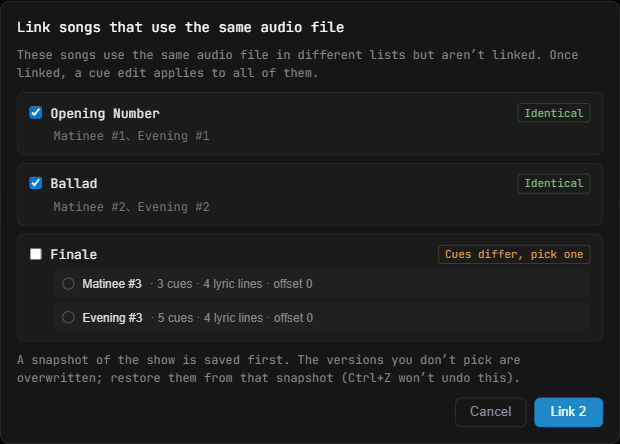
Link songs you already have. A show from before linking existed — or copies pasted independently — can hold the same audio file in several lists with nothing joining them. Right-click any list’s tab and choose Link same-file songs… from the menu. The dialog lists every song that uses the same audio file in more than one place. Identical means the copies already match: they are ticked and ready. Cues differ, pick one means they have drifted apart: each version is listed with where it lives, how many cues and lyric lines it has and its offset, and that song stays unticked until you click the version to keep.
- 5
Press Link 2 — the number is how many songs will be linked. Every copy takes the version you picked and joins one link. LTCast saves a snapshot of the show first, because the versions you did not pick are overwritten; get one back from Version snapshots. Ctrl+Z does not undo this step.
- 6
Skip a song without deleting it. Right-click the song and choose Skip this song (Skip 3 songs when three are selected). It stays in the list, greyed out and struck through, with a Skip badge — like the ballad in step 2. Auto-advance, next / previous and every NEXT display step over it, and the list’s running time no longer counts it. Right-click it and choose Don't skip to bring it back. Double-clicking a skipped song still plays it.
Worth knowing
- Shared by every linked copy: cues and markers, regions, the song map, lyrics, video alignment, triggers, the song offset, start timecode, gain trim, downbeat and time signature, and the song’s name and audio file.
- Set separately in each list: Skip, what happens after the song finishes, the transition to the next song, pre-roll, and fade in / out. Skipping the ballad in Evening does not skip it in Matinee, even though the two are linked.
- Cut then Paste, and Move to list, relocate the same song rather than making a new link, so a song that was already linked stays linked. Paste, Cut, Copy to list and Move to list are each one step of Ctrl+Z.
- Unlinking keeps everything the song has. When only one copy is left in a link, it stops being linked on its own.
- An older LTCast opens a show with linked songs normally — it just treats the copies as separate songs.
- On a Mac, use Cmd in place of Ctrl for copy, cut and paste.
Still stuck? Email [email protected] — happy to help you get a show locked.